Appearance
Using Find Bar
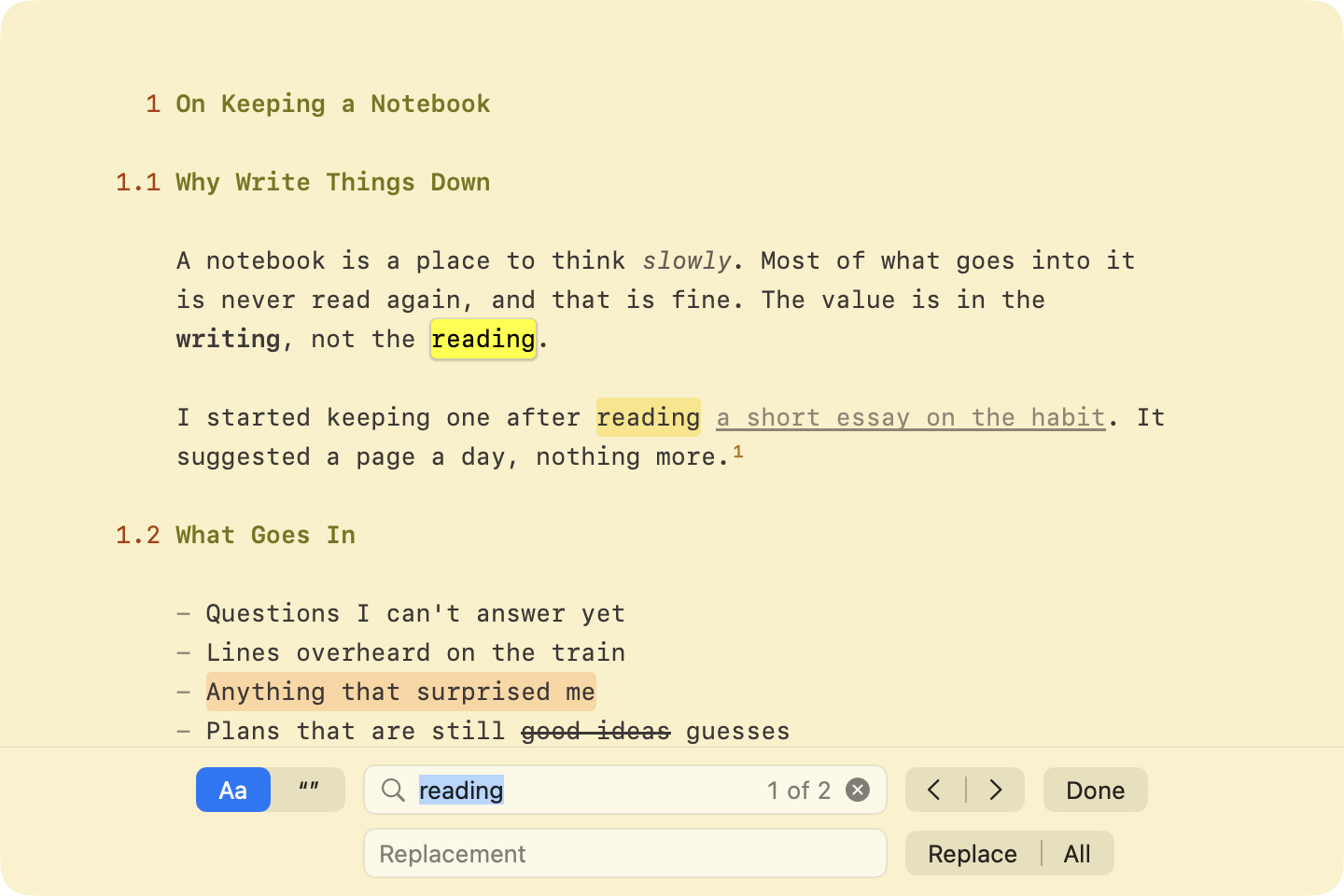
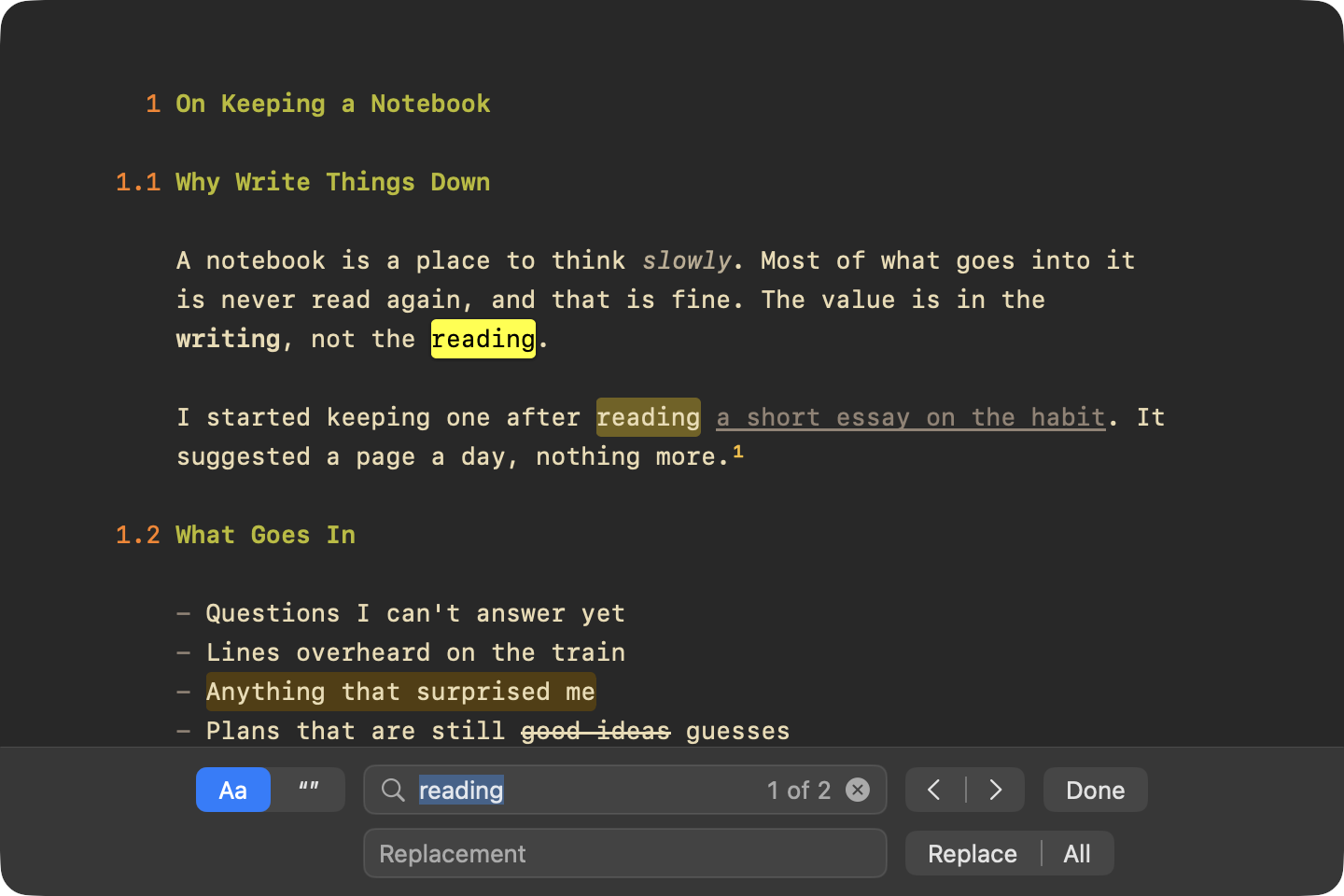
The find bar finds and replaces text in the current document. It opens at the bottom of the window.
To show the find bar
- Edit > Find > Find… (Command-F). The find bar always shows its replace field.
To go to the next or previous match
- Click the next or previous button in the find bar
- Or use Edit > Find > Find Next (Command-G) and Find Previous (Shift-Command-G)
To search for the selected text
- Edit > Find > Use Selection for Find (Command-E)
To scroll the selection into view
- Edit > Find > Jump to Selection (Command-J)
To replace
- Click Replace to replace the current match
- Click All to replace every match
To hide the find bar
- Click Done, or press Escape
To show only the lines that match
- Click the zoom button after the match count. See Overview Mode.
Find Bar Options
Aa: match case. On by default.“”: match only whole words..*: search with a regular expression.
Click the magnifier for the rest:
- Ignore Case: the opposite of
Aa - Wrap Around: Find Next wraps to the top after the last match.
- Contains, Starts With, Full Word: whether a match can be part of a word, must start one, or must be a whole word
Patterns
A pattern finds a kind of text rather than exact text, like any number or any web address. Patterns sit in the find field as capsules, mixed in with the text you type.
To insert a pattern
- Click the magnifier, then Insert Pattern
| Pattern | Finds |
|---|---|
| Tab | A tab character |
| Paragraph Break | The end of a paragraph, where you pressed Return |
| Line Break | Any line break, including the line separators some apps paste |
| Any Characters | Any run of text within one line |
| Any Word Characters | A run of letters and numbers |
| Word Break | The start or end of a word |
| White Space | Spaces and tabs within one line |
| Digits | A run of digits |
| Email Address | An email address |
| Web Address | A link starting with http://, https://, or www. |
Replacing with Regular Expressions
When .* is on, the replace text can reuse parts of each match. $1 is what the first group in parentheses matched, $2 the second, and so on. $0 is the whole match, and $$ is a dollar sign.
For example, find (\w+), (\w+) and replace with $2 $1 to turn "Austen, Jane" into "Jane Austen".
WriteRoom's regular expressions follow the Rust regex library. Its documentation describes the full search syntax and replacement syntax. Note, if a letter or digit comes right after the group number, add braces: ${1}st, not $1st.