Appearance
Links & Footnotes
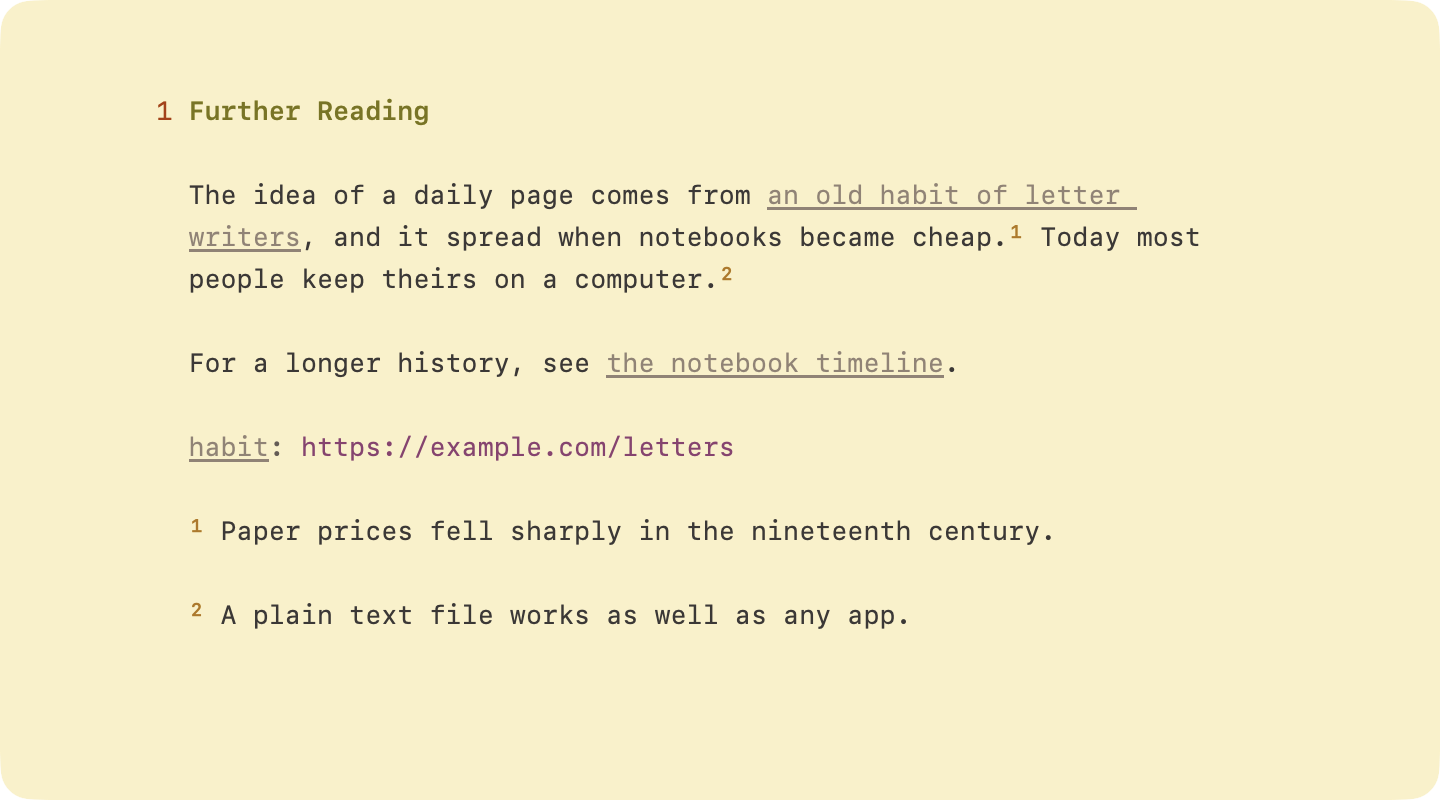
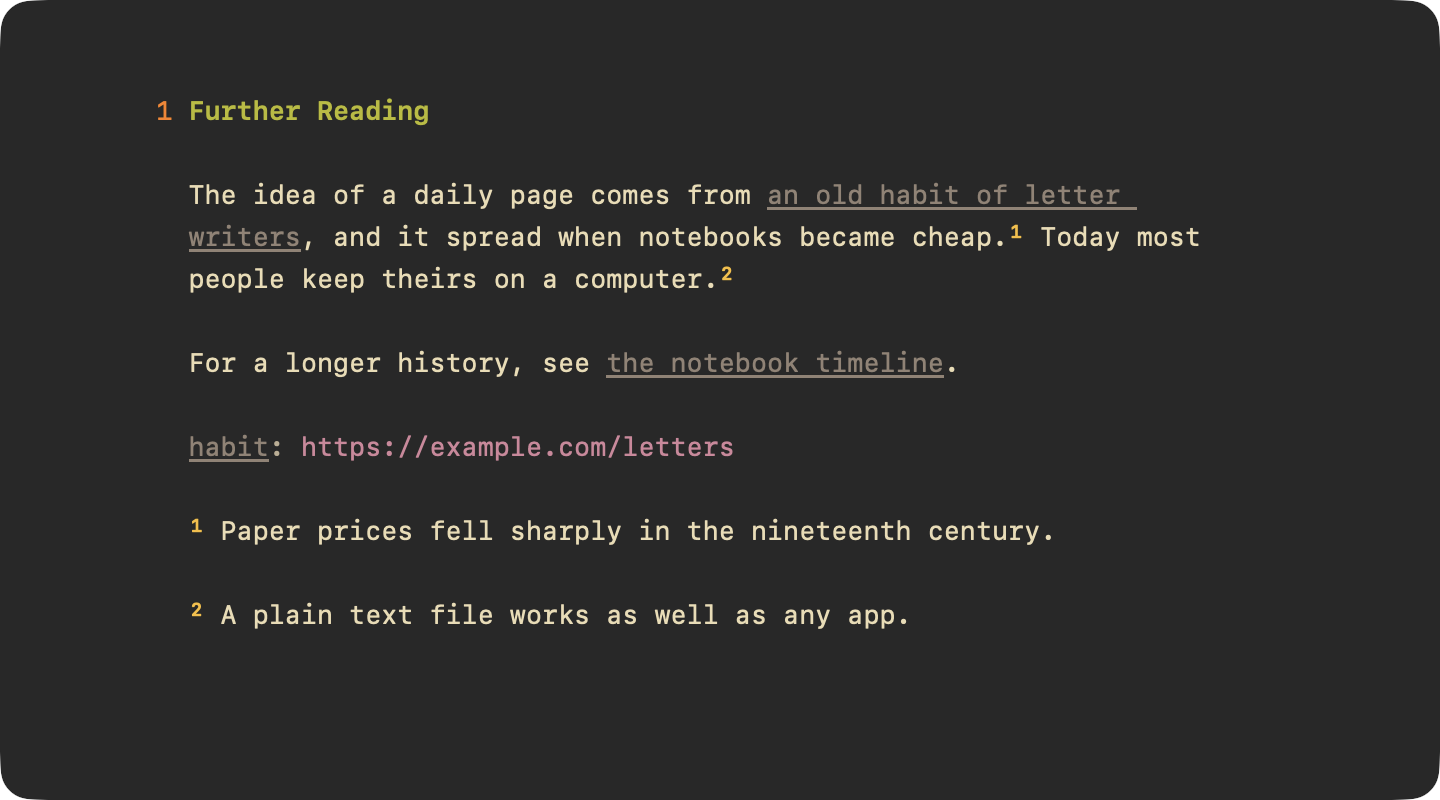
Links point somewhere else. Footnotes hold an aside at the bottom of the document. WriteRoom writes both for you and keeps them numbered.
Links
To add a link
- Format > Links & Footnotes > Add Link… (Command-K). The selection becomes the link text and the caret moves to where the URL goes.
- Or paste a URL over selected text.
A bare domain like hogbaysoftware.com opens as an https link.
To link to a heading
- Put the caret in the heading's section and choose Edit > Copy > Link to Heading
- Paste where you want the link
The link points to the heading's anchor, like [Soil](#soil). Command-click it to go there.
To open a link
- Go > Open Link (Command-Return) with the caret in the link
- Or Command-click the link
- Or Control-click the link and choose Open Link
To step through links
- Go > Previous Link
- Go > Next Link
Reference Links
A Reference Link keeps the URL out of your sentence. The text says [WriteRoom][1], and a definition elsewhere says [1]: https://….
To add a reference link
- Format > Links & Footnotes > Add Reference Link (Shift-Command-K). WriteRoom numbers it and adds the definition.
Type ][ to choose from the labels already defined.
To convert a link
- Format > Links & Footnotes > Convert to Reference Link
- Format > Links & Footnotes > Convert to Inline Link
Footnotes
A footnote reference looks like [^1], and its note starts with [^1]:. Indent following lines four spaces to keep them in the note.
To add a footnote
- Format > Links & Footnotes > Add Footnote (Option-Command-K). WriteRoom adds the next numbered note.
Type [^ to choose from the notes already defined.
To go between a reference and its note
- Go > Go to Definition (Control-Command-J)
- Or Command-click the reference or the note
Checking Links
Check Document finds references and footnotes with no definition, definitions nothing uses, links to headings that don't exist, and links to missing files. It's in the Format menu. See Clean Up & Check.