Appearance
Exporting Documents
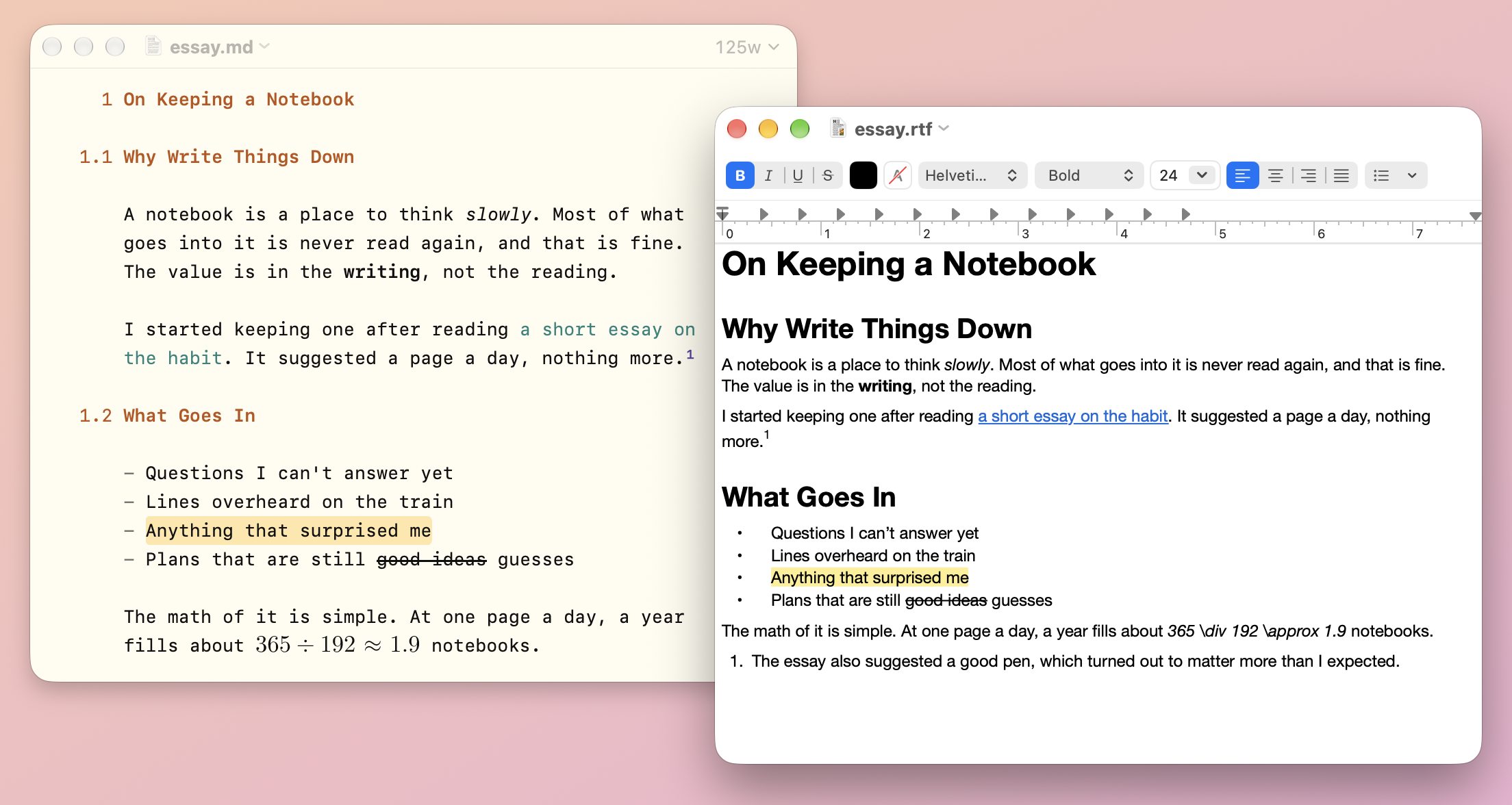
Export turns a Markdown document into a file for people who don't use Markdown. Your document stays as it is. For books, websites, and other formats, see Using Other Apps.
To export a document
- File > Export > HTML…
- File > Export > Rich Text (.rtf)…
- File > Export > Word Document (.docx)…
To copy in another format
Select some text, then:
- Edit > Copy > HTML
- Edit > Copy > Rich Text (.rtf)
- Edit > Copy > Word Document (.docx)
These are also in the editor's Control-click menu.
What Comes Along
Exports keep headings, emphasis, lists and task boxes, links, footnotes, tables, code with its colors, and text direction. HTML and Word exports start with the front matter's title and abstract.
Equations become real equations in Word. HTML keeps them as TeX, ready for KaTeX or MathJax to draw. Rich text shows the TeX as you wrote it.
Word embeds images and SVG diagrams. HTML links to images by the path you wrote, so keep the files beside the exported page. Rich text shows an image's alternate text. Mermaid diagrams come along as code.
Line breaks inside a paragraph are joined, as Markdown reads them. To keep every one, turn on WriteRoom > Settings > Markdown > Keep every line break on export to HTML, RTF, etc. See Line Breaks.
Export works in Markdown documents. To print or make a PDF, see Printing Documents.