Appearance
Headings for Structure
Headings give a document its shape, and they're one of the easiest parts of Markdown to learn. WriteRoom uses them to jump between sections, fold them away, and show your whole document at a glance.
To make a heading
Start a line with #. More marks make a smaller heading:
markdown
# Chapter One

The harbor was quiet the night before she sailed.

## The Storm

By morning the wind had turned, and the sky went dark.
Or choose a level from Format > Headings (Command-1 to Command-6).
Go To
In a document with headings, you can move between sections without scrolling.
To jump to a heading
- Go > Go to Heading… (Shift-Command-O), type part of the heading, and press Return
To step through headings
- Go > Previous Heading (Control-Option-Command-Up)
- Go > Next Heading (Control-Option-Command-Down)
- Go > Parent Heading (Control-Option-Command-Left)
- Go > First Subheading (Control-Option-Command-Right)
Hold Shift to step to the previous or next heading at the same level.
Sticky Headings
As you scroll, the heading of the section you're reading stays pinned to the top of the window. Click a pinned heading to jump to it.
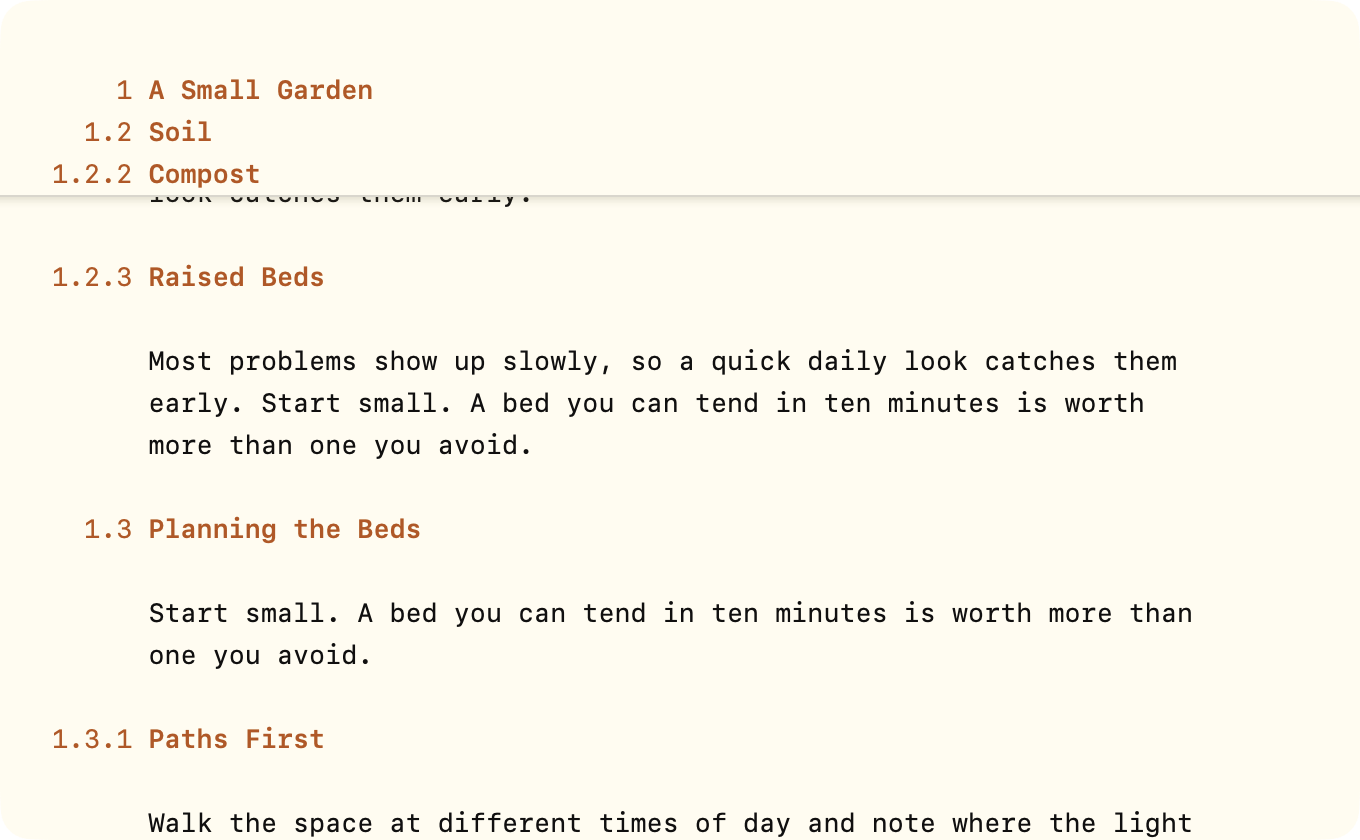
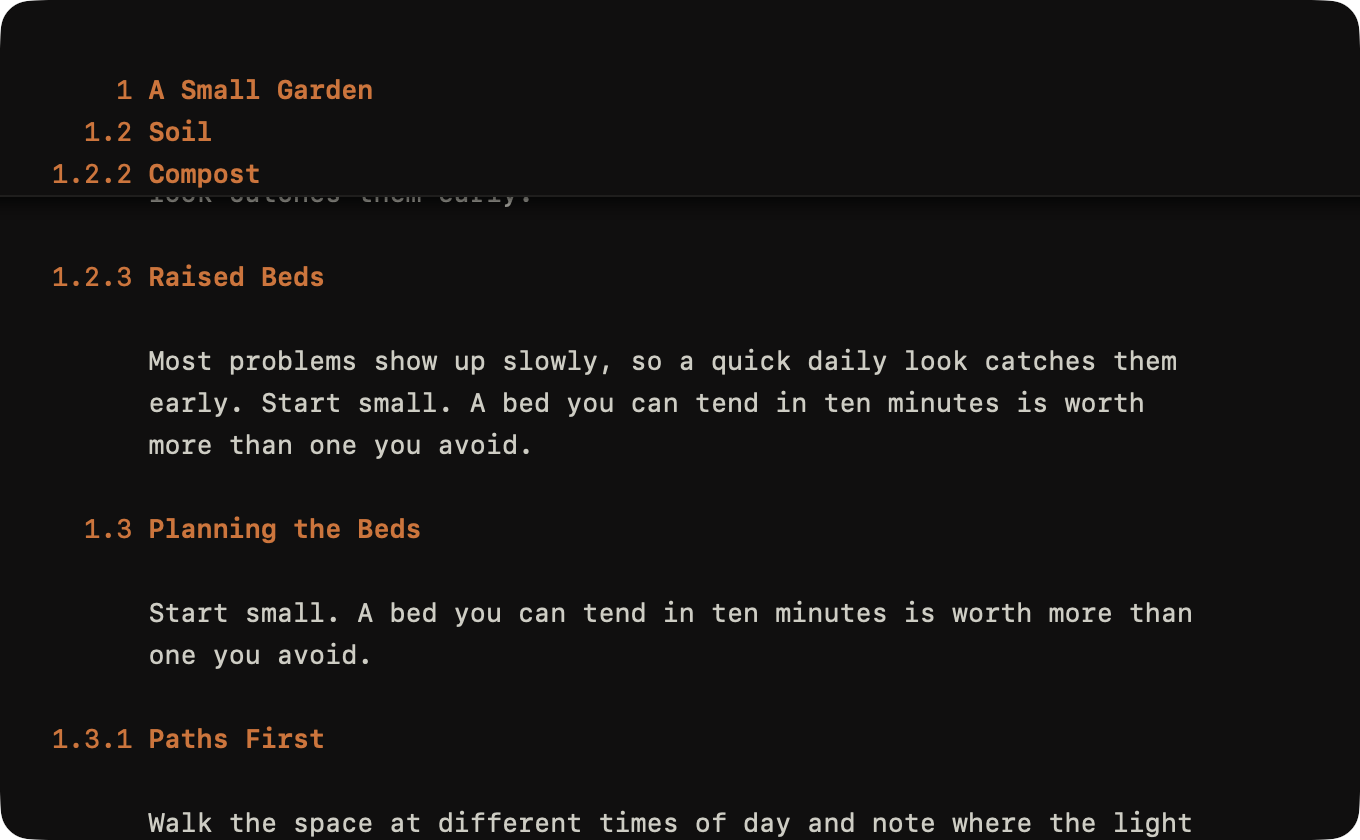
To turn off sticky headings
- View > Sticky Headings (Control-Command-H)
Set the default for new windows in WriteRoom > Settings > General.
Heading Overview Mode
Heading Overview Mode shrinks everything except your headings, so your document's structure fills the screen.
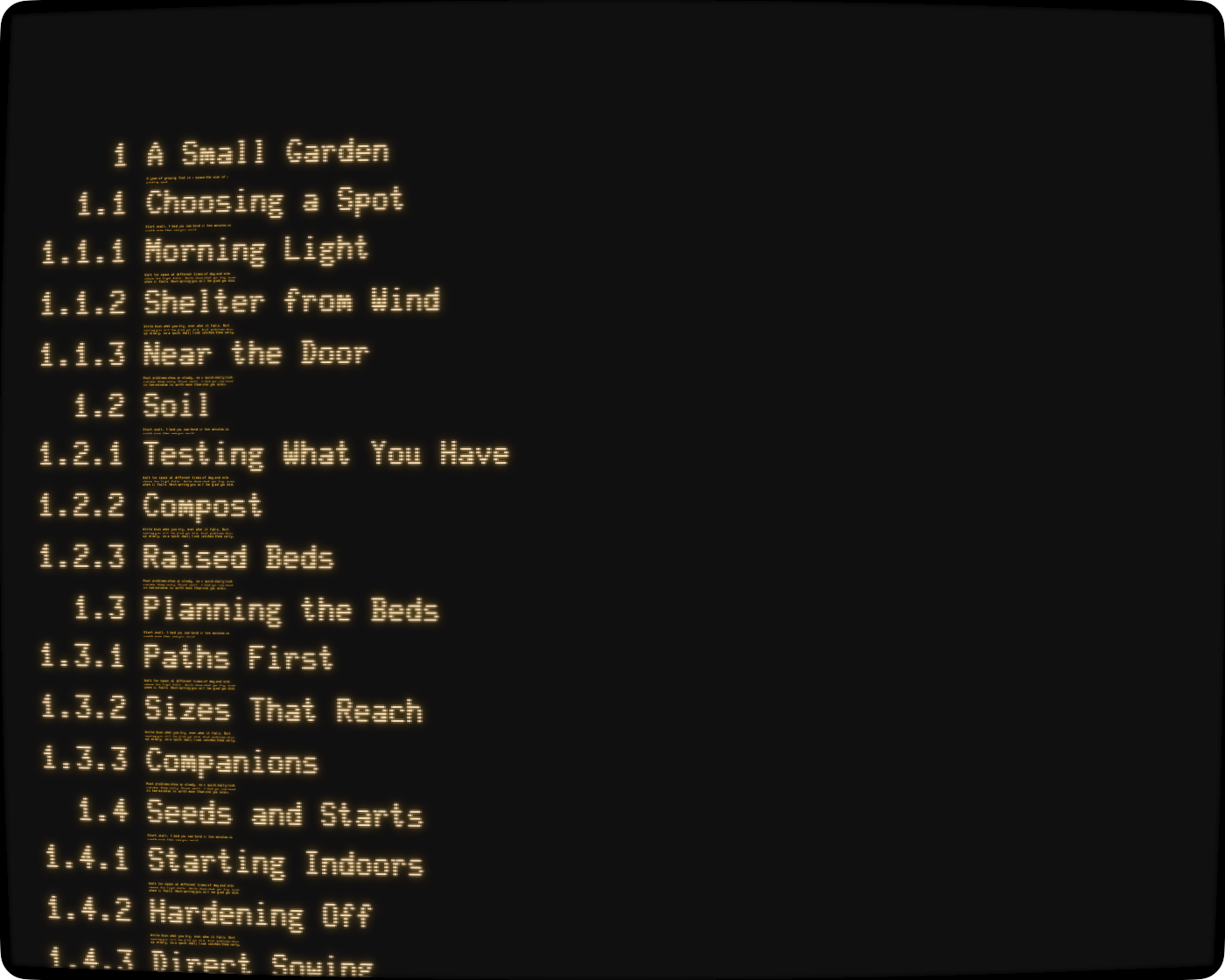
To see your headings
- View > Heading Overview Mode (Option-Command-O)
Press Escape, type, or click to leave.
Folding
Folding hides a section so you can see around it. Headings, lists, and other blocks fold.
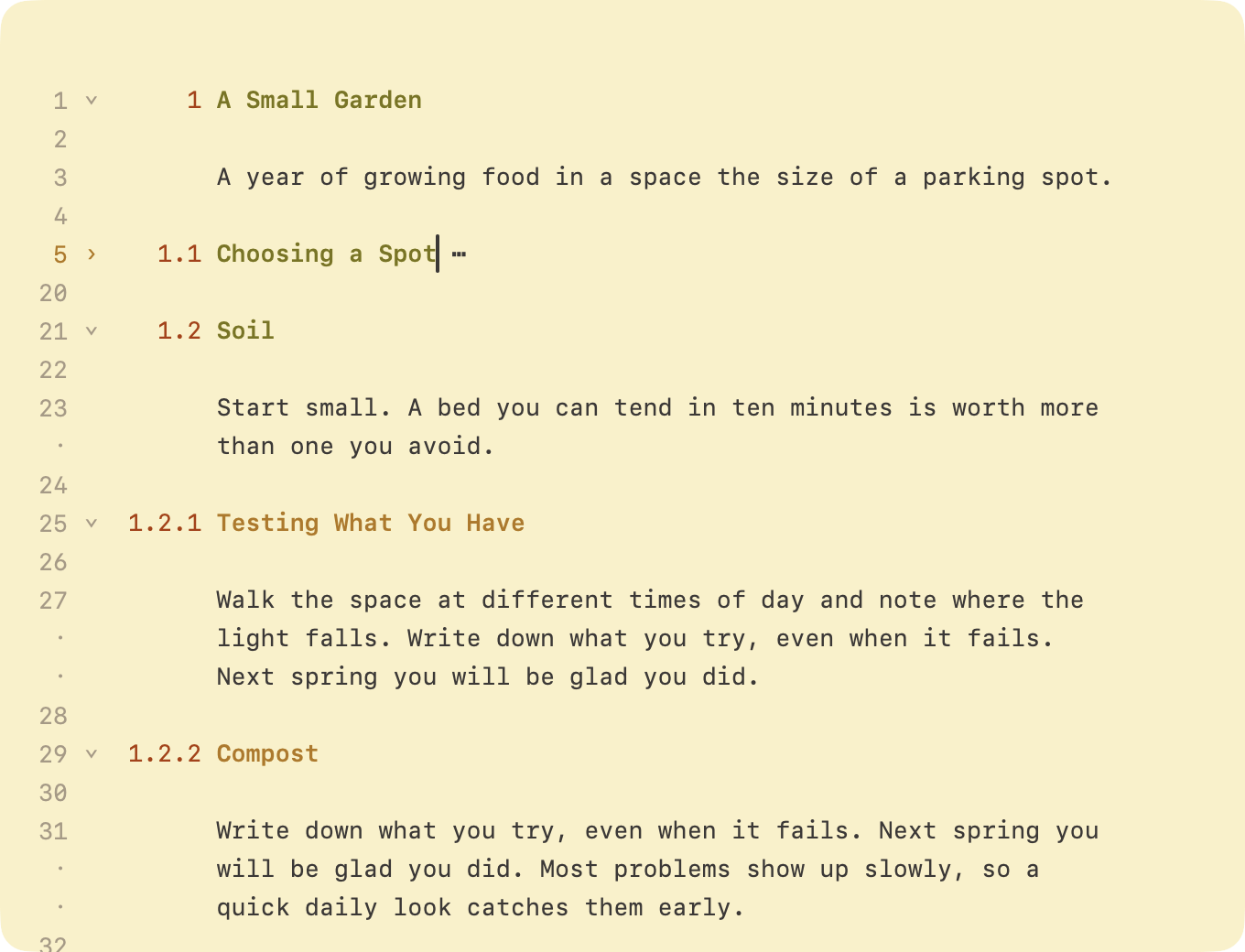
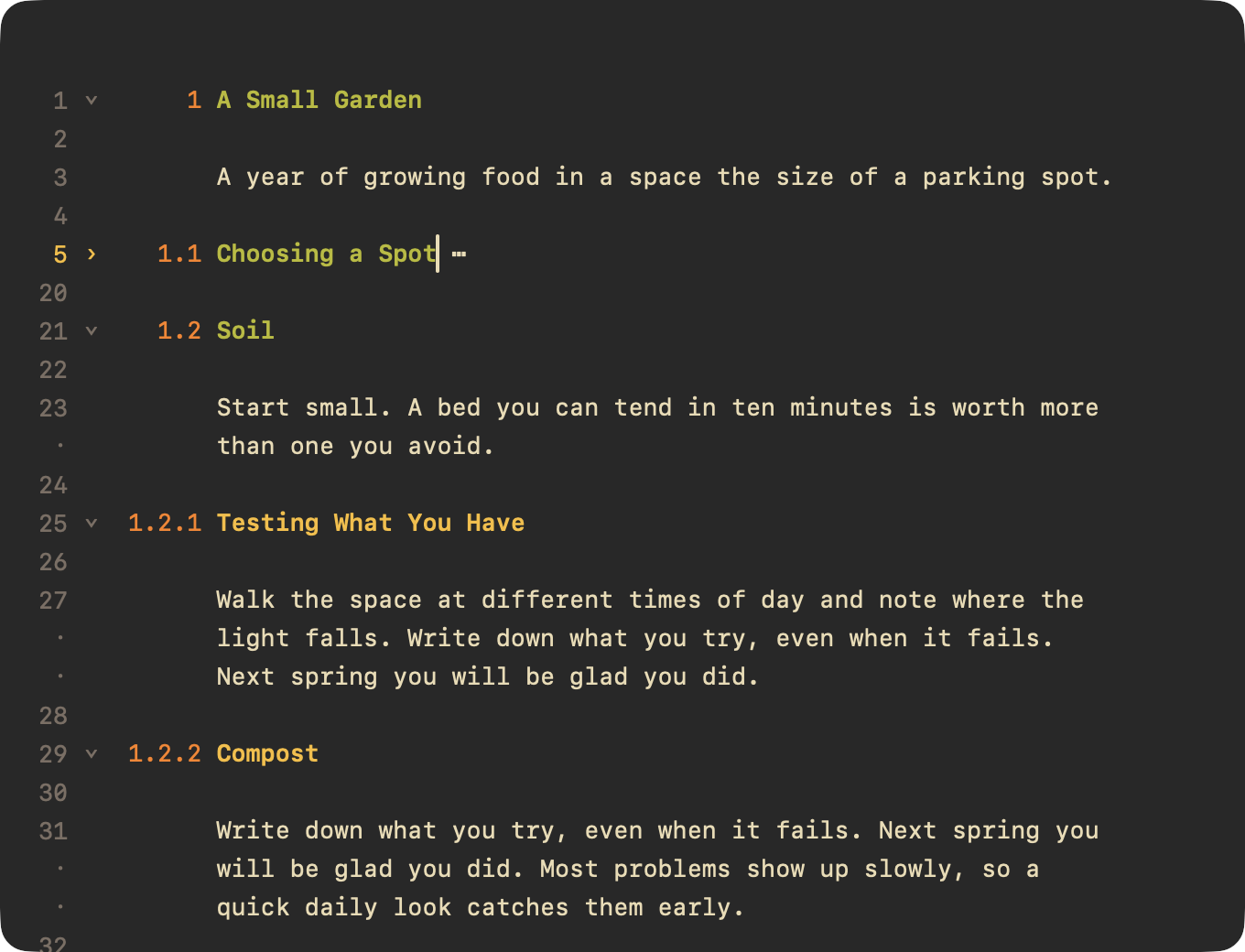
To fold the section at the caret
- Edit > Fold > Collapse (Command-9)
- Edit > Fold > Expand (Command-0)
To fold every section
- Edit > Fold > Collapse All (Control-Command-9)
- Edit > Fold > Expand All (Control-Command-0)
To fold one level at a time
- Edit > Fold > Collapse by Level (Option-Command-9)
- Edit > Fold > Expand by Level (Option-Command-0)
- Edit > Fold > Collapse All by Level (Control-Option-Command-9)
- Edit > Fold > Expand All by Level (Control-Option-Command-0)
These show in the Fold menu when you hold Option. Click a fold's ⋯ to open it.
Folds come back when WriteRoom reopens a window. If the file changed in another app, folds that no longer fit open instead.