Appearance
Attachments
Drop an image or any other file into a document to keep it with your writing. Attachments draw in place, the way images do.
To attach a file
- Drop it into the document
- Or paste an image, such as a screenshot
Hold Command while dropping to insert the file's path instead.
How Attachments Draw
An attachment on a line of its own shows a preview of the file, such as a document's first page, framed like an image with the file's name in its corner. A file with no preview shows its icon.
An attachment inside a sentence shows the file's icon, one line tall and framed like an image.
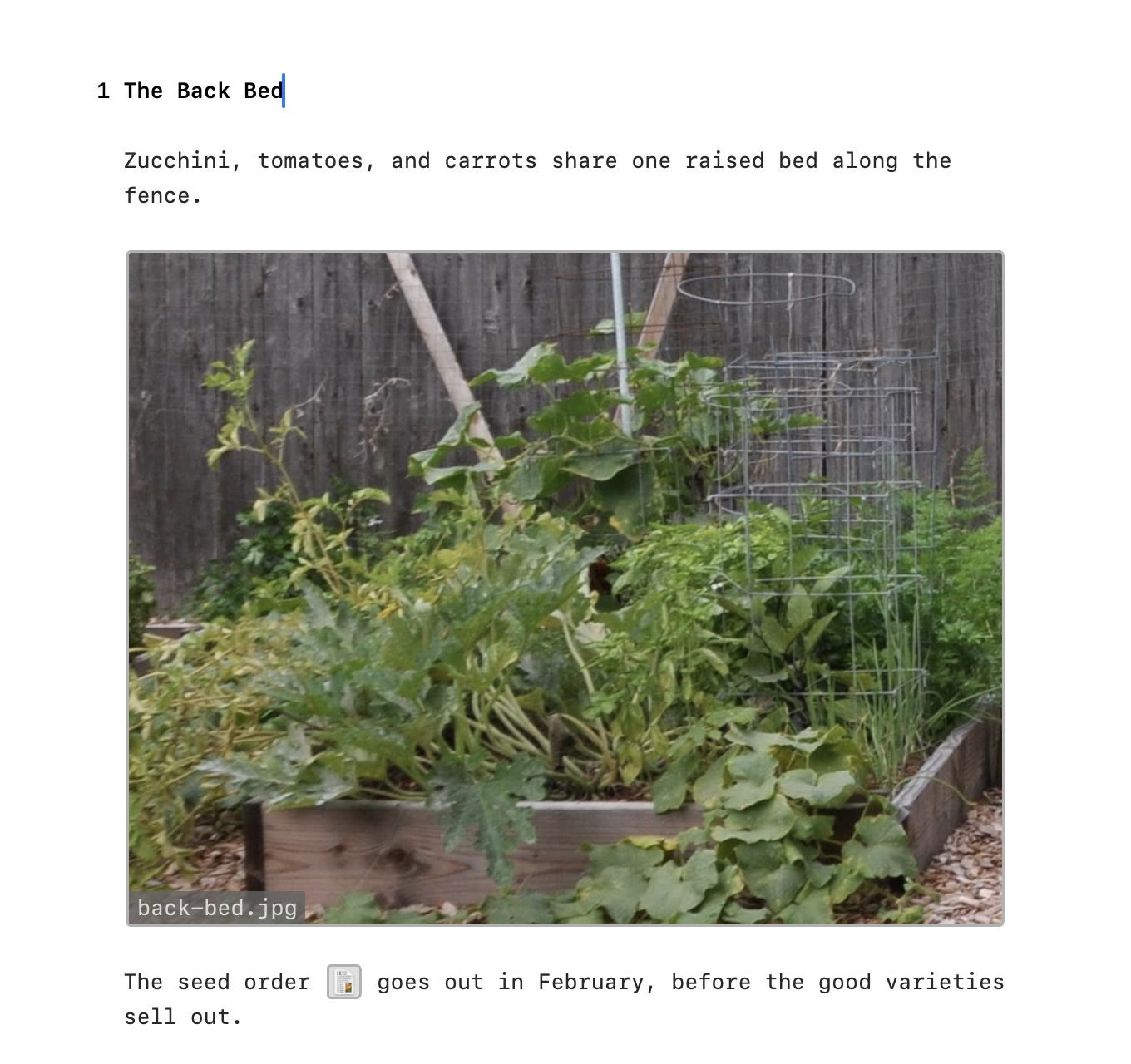
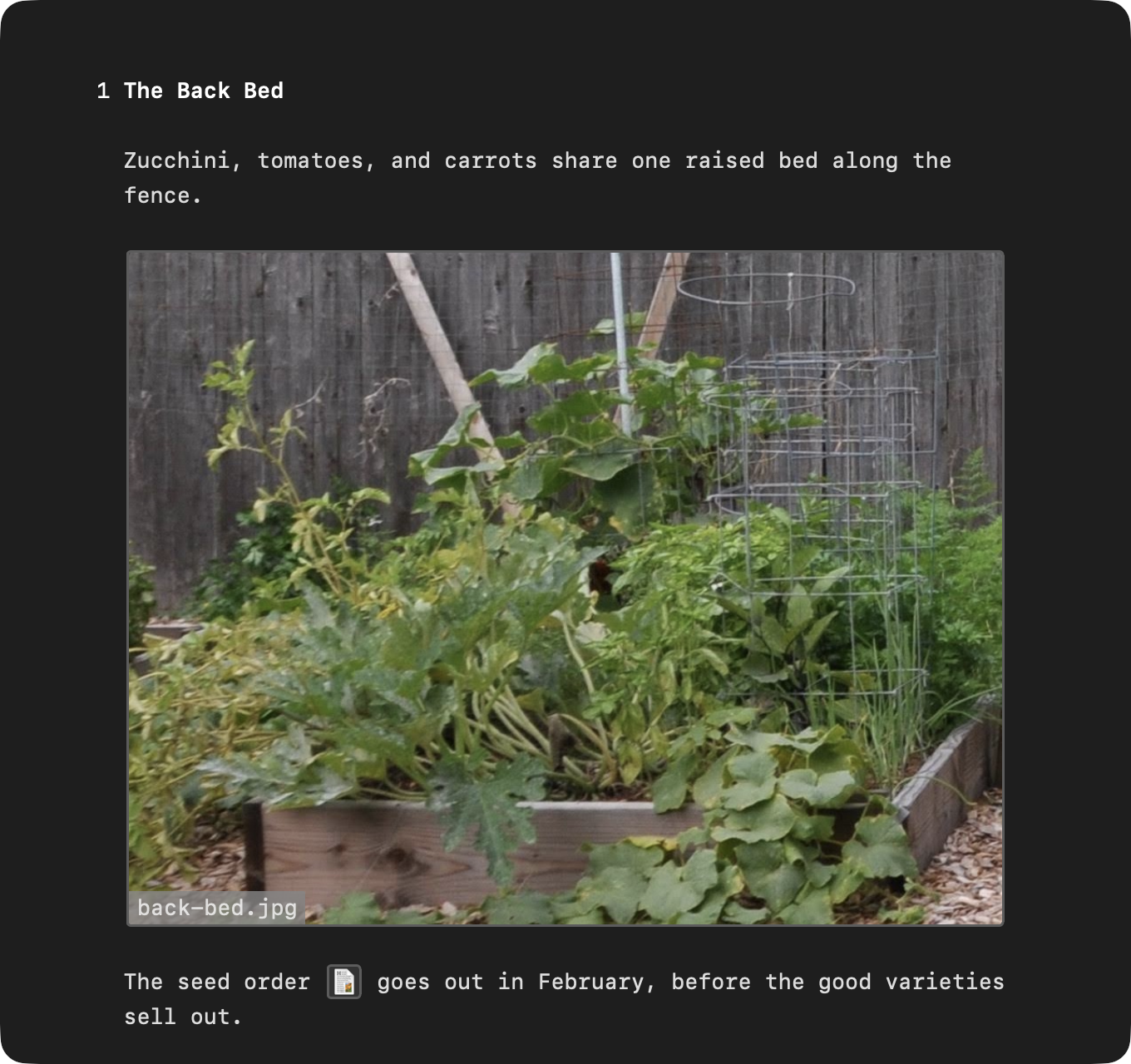
Give an attachment a width, as you would an image, to draw its preview larger or smaller.
TextBundles
Attached files live inside a TextBundle, a document package that holds your text and its files together. It opens in other Markdown apps that read TextBundles.
The first time you attach a file to a saved Markdown document, WriteRoom asks to convert it to a TextBundle. An untitled document converts without asking. The file is copied into the bundle, so the original stays where it was.
Working with Attachments
- Click one to select it
- Space shows it in Quick Look
- Return shows its Markdown link
- Delete removes it from the text
To rename or copy an attached file
Control-click it, then:
- Copy File: copies the file, as Finder does
- Rename File…: renames the file and every link to it. Edit > Undo puts the old name back.
- Reveal in Finder
To see every attached file
- File > Document Info… (Shift-Command-I)
It lists each file with its size and whether the text still links to it. Open in Finder shows the bundle's contents. Control-click a file to copy, rename, reveal, or move it to the Trash.
Missing File
An attachment shows Missing File when its file isn't there or WriteRoom can't read it. A file moved to the Trash from Document Info shows this way too.
WriteRoom can only read files it was given, so an image or file beside a plain .md file shows Missing File. Attach it instead.