Appearance
Overview Mode
Overview Mode shrinks your document to minimap size, except for the lines you choose to keep. The mode stays on while you work. Click, select, and type as usual. A line grows or shrinks as your edit makes it kept or not.
To zoom
- View > Overview Mode, then choose what to keep
- Or click the zoom button in the find bar or the checking panel
To leave
- Press Escape or click the top-right button
Headings
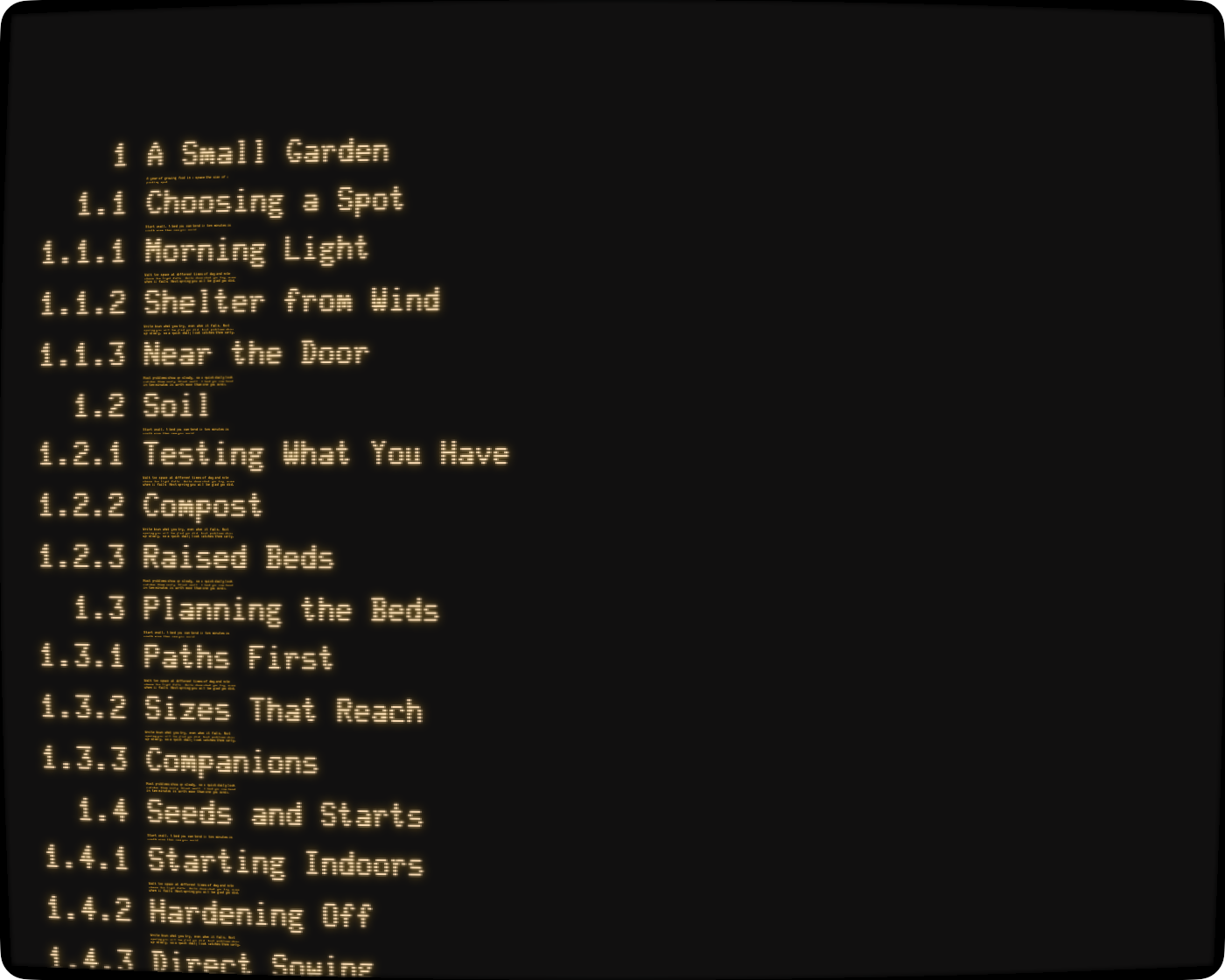
To choose how many heading levels you see, click H1, H2, and so on under the button in the top-right corner. Only the levels your document uses appear.
Open Tasks
Keeps the items in your task lists that aren't checked off yet.
Find Matches
Keeps every line that matches the text in the find bar.
Spelling and Checking
Keeps the lines with a spelling or grammar underline.