Appearance
Images & Diagrams
WriteRoom draws images, diagrams, and equations in place. They stay plain Markdown underneath, so the file still opens anywhere. Disable this live preview in Markdown settings.
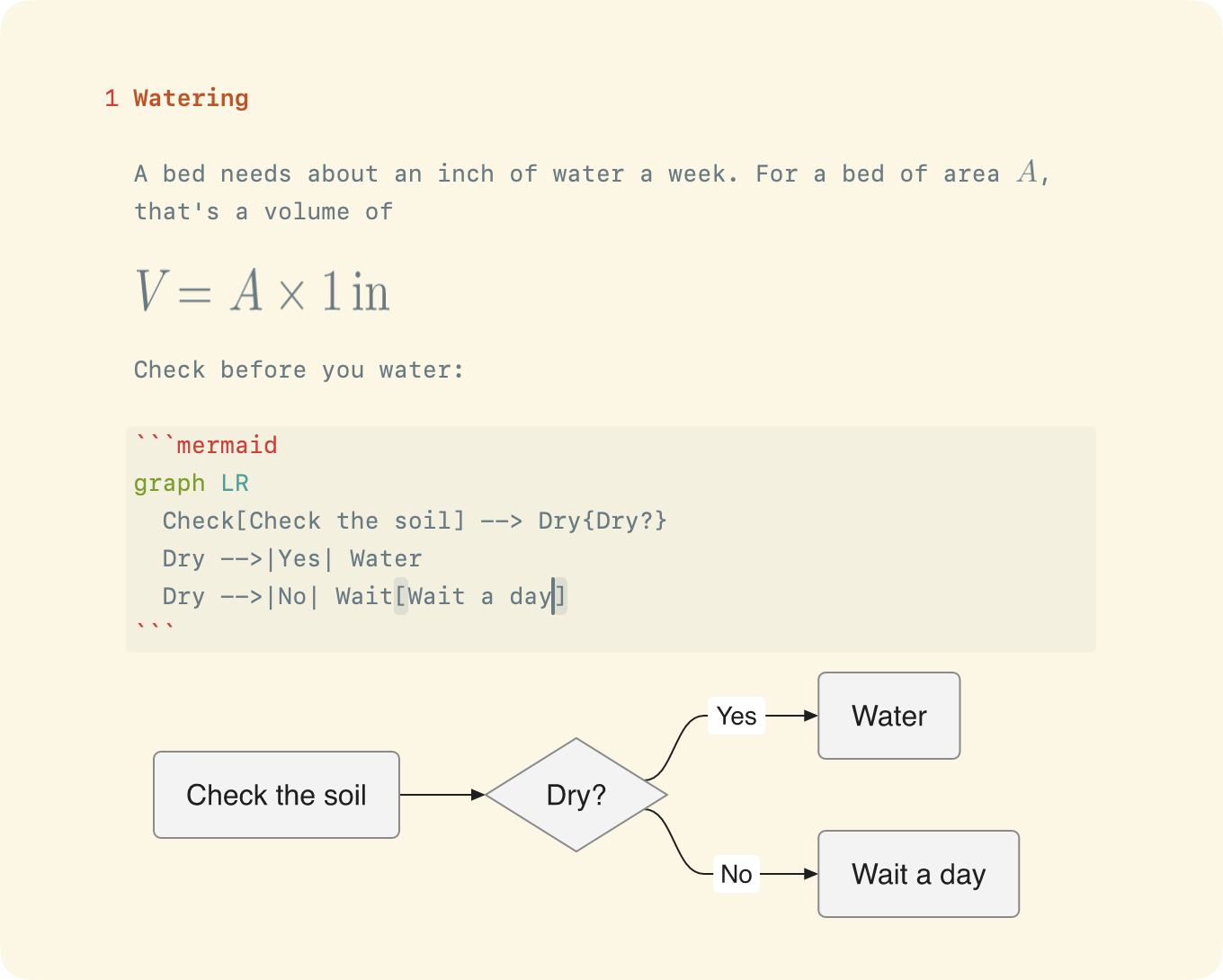
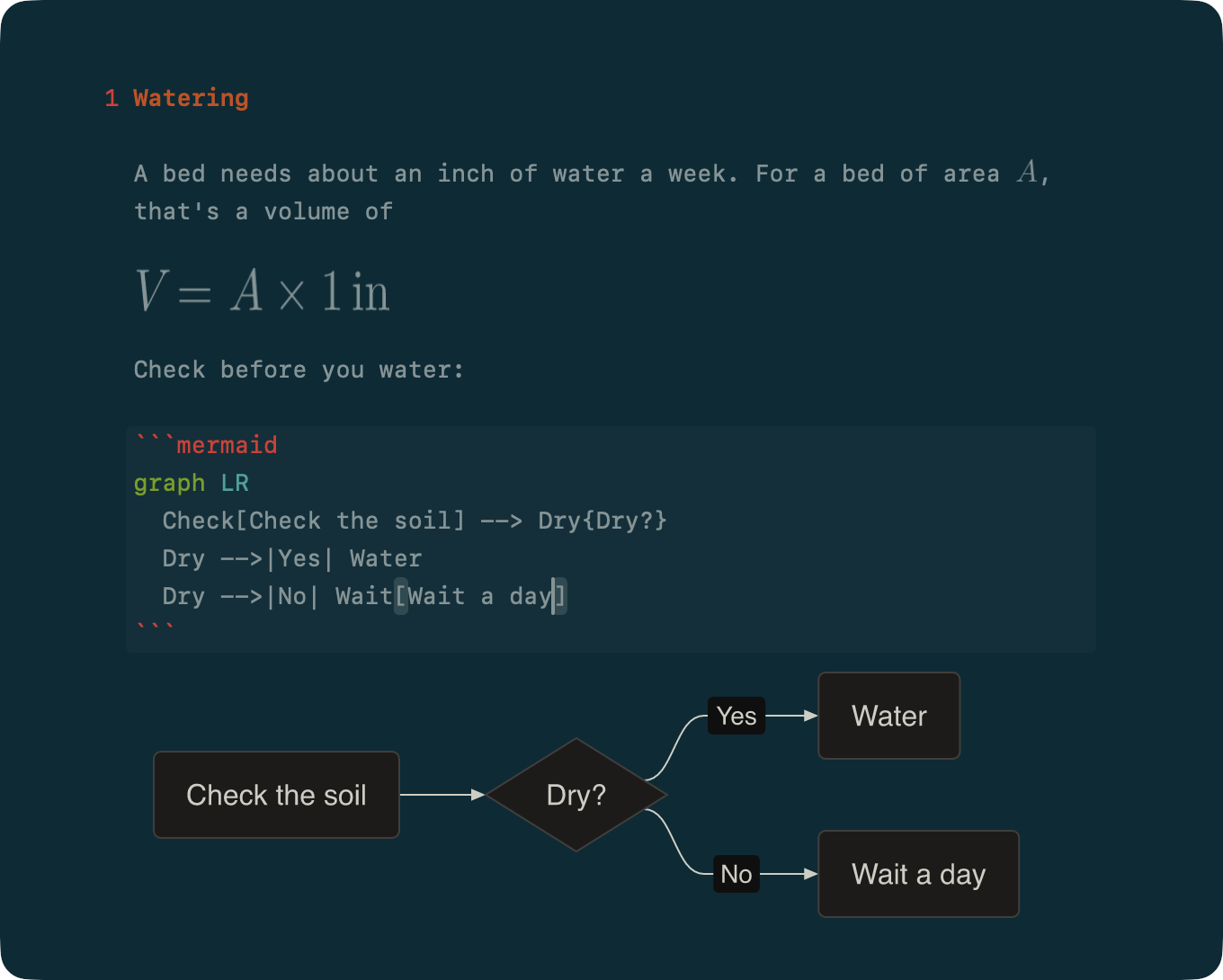
Images
Images are attachments, so you add, select, and remove them the same way, and they draw in the same two forms:
- On a line of its own, an image draws at its own size, shrunk to fit the column, framed with its file name in the corner. Another file draws a preview the same way.
- Inside a sentence, an image draws one line tall, unless it has a width. Another file draws as its icon, framed the same way.
To set an image's width
- Add
{width=…}after it:{width=50%}
A percentage is a share of the column. Pixels (400), in, cm, mm, and pt work too. An image with a width can grow past its own size, but never past the column.
To edit an image's Markdown
- Select it and press Return, or double-click it
The image stays in view: below the Markdown when it's alone on its line, or floating over it inside a sentence. The Markdown hides again when the caret leaves.
Attaching an image inserts a line like . A reference image, ![A tide pool][pool], draws the file its definition names, or shows Broken Link when there's no definition. Images from the web don't draw.
Diagrams
Write SVG or Mermaid in a fenced code block named svg or mermaid:
markdown
```mermaid
graph LR
  Draft --> Revise --> Publish
```
A diagram that can't be drawn shows its source.
Math
Write LaTeX math between dollar signs: $E = mc^2$ inline, or $$…$$ for a display equation. Its source is colored as LaTeX.
Editing Diagrams and Math
Diagrams and equations select and edit the same way as images. Return or a double-click shows the diagram or LaTeX source, with the drawing still in view.
To copy a diagram or equation as an image
- Control-click it, then choose Copy Image